
Downloading and installing are completely free, and it costs nothing to open the app or browse the lobby. You only spend when you add money yourself and place a bet. The minimum deposit is ৳400 — nothing is deducted below that.
a888h App: matches and games in one place on your phone
The file is free and only 36 MB. Once it's installed, your balance, bets and game lobby sit in a Bangla interface right on your phone — no need to open a browser every time.
What to check before downloading the file
Before you hit the download button, spend two minutes checking four things and you're far less likely to get stuck at install: whether the file details are right, whether your phone has space, where the file is coming from, and whether your device is Android or iOS.
a888h app file details
- Version 2.7.17
- File size 36 MB
- Minimum Android 6.0
- Last updated 26 November 2026
- Cost Free
- Language Bangla / English
How much free space to keep on your phone
Even though the file is 36 MB, Android needs extra room while installing it. Check in Settings that you have at least 400 MB free, since game cache, updates and screenshots all pile up in that space. If space is low, the phone will suggest deleting old photos or videos on its own — back up your important files before it does.
A quick look at the screens inside the app
The screen above is just a design, not a screenshot. In the real app, tap the balance card to open your wallet, and use the list below to get into the game lobby.
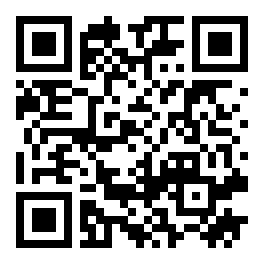
Want to send it from your computer to your phone? Scan this QR code:
What to do if you're on an iPhone or iPad
-
Open the Safari browser. APK files don't run on iOS, so instead of an app store you have to make a home screen shortcut. Other browsers may not have this option, so stick with Safari.
-
Open the site lobby and hit the share button. When you tap the share icon at the bottom, you'll see an “Add to Home Screen” option in the menu.
-
Keep the name as it is and add it. The icon lands on your home screen, and tapping it opens the lobby in full screen with no browser bar.
-
You'll have to log in the second time you enter. The shortcut doesn't keep your session, so each time you go in you'll need to sign in to your account from the login page.
Download the file from this page only
Never install an APK sent through Facebook Messenger, WhatsApp or email. Even if the file name looks the same, the code inside can be different.
After downloading, check in Settings that the file size is close to 36 MB. A file that's much smaller or much bigger means something isn't right.
If you'd rather just download it for now, you can read the app vs website comparison page to see in detail which one suits your needs better.
Five steps to finish installing, and the common snag in each one
Downloading the file and getting it onto your phone aren't the same job. Do the steps below in exactly this order and a888h app will install on the first try. Under each step there's a short note on what most often trips people up there and how to get past it.
-
Give the browser permission to install files
In Chrome, open the three dots on the right, then Settings, then Files and apps, then Special access at the bottom, then “Install unknown apps”. Pick Chrome from the list and turn the switch on. This doesn't turn off your phone's normal security — it only lets the browser install files.
Why it gets stuck: if the switch is off, tapping the file doesn't even show an “Install” button, just a warning. If you're using Firefox or Opera, you have to give that browser permission in Settings instead. -
Download the APK file and watch the progress
Tap the “Download APK” button above and the a888h.apk file starts downloading. Pull down the notification bar from the top to see the progress as a percentage. A 36 MB file usually downloads in one to three minutes, a bit longer on a weak connection.
Why it gets stuck: if the network cuts out mid-way, the file sits there half-downloaded and installing later shows “package could not be parsed”. Wait until the notification shows it's complete. -
Find the file and tap install
Pull down the notification shade and tap the file, or open the Downloads folder in your file manager and look for a888h.apk. The screen that opens shows the app name, a short list of permissions and how much space it needs. Press “Install” below and the phone will start setting it up on its own.
Why it stalls: if an older file with the same name is sitting in Downloads, you can end up opening the old one by mistake. Check the file date once before installing. -
What to do when the Play Protect warning appears
Android shows a grey warning for any APK from outside the Play Store. If the file was downloaded from this page's own link, you can choose “Install anyway” and carry on. If the file came from somewhere else, don't press that button — delete it and download again.
Why it stalls: if your phone has a separate security app, you have to allow this app in it, or the install stops at the very last step. -
Allow permissions on first open, then log in
When the install finishes the icon appears on your home screen, and two or three permission boxes pop up the first time you open it. Allow the ones it actually needs, then if you have an account follow the steps on the login page. New here? Fill in the registration form first.
Why it stalls: an “App not installed” message is usually down to the first-step switch, not enough space, or an older build of the same package still on the phone.
If your phone runs Android below 6.0: pressing Install won't work, because this build isn't made for that version. Check the Android version under “About phone” in Settings. On an older phone you can play the lobby in your browser instead — the comparison is on the App vs Website page.
With the a888h App open, which daily tasks finish in a single tap
The installed app isn't just the browser in another shape — a few tasks really do need fewer steps. And for some things the browser is simply handier. Which is which is laid out below.
-
Getting in without typing your password every time
Once you log in, the app keeps the session, so next time you just tap the icon. Log out of the app before handing the phone to someone else or moving to a new phone, or the account will be left open.
-
Checking your balance and topping up
Tap the wallet card and your balance, bonuses and deposit button all show together. bKash, Nagad, Rocket, Upay and bank transfer — all five are inside the app. Deposits usually land in 3 minutes and withdrawals in 12, starting from ৳400. The steps are in the deposit guide.
-
Match start and bonus deadline alerts
Push notifications tell you before a match starts, before a bonus runs out and when a withdrawal finishes. Go into the app settings to choose which alerts you want. Turning everything off means missing the updates that matter too, so switch off selectively rather than killing notifications entirely.
-
Getting help and reporting a problem
You can talk directly from the 24/7 live chat inside the app, with no browser tabs to juggle. Sending a screenshot or a payment reference number is easier too, since chat and wallet sit in one place. Jot down the transaction time before you send your message and you'll get an answer faster.
When the browser is the handier option
If you only drop in now and then to check results, the browser is fine and saves you app updates and permission prompts. The same account works in both the app and the website — no need to open a second one. Which games you play doesn't change between them; what to pick from slots, fishing, live casino and sports is covered on the Casino page.
- 3 minutes Deposit posting time
- 12 minutes Withdrawal processing
- 24/7 Live chat
Which permissions the app asks for, what each one is for, and which you can switch off
The first time you open it, your phone shows a few permission boxes. Nothing to be scared of, but you don't have to grant all of them. Below is what each one does and what stops working if you refuse it.
- Notifications To send you reminders before a match, bonus deadlines and withdrawal updates. If you refuse, only push alerts are switched off — everything else keeps working. You can turn it back on later in settings.
- Camera For the odd case where you need to photograph and upload a document. If you refuse, nothing blocks playing games or withdrawing money — only the take-a-photo option won't work.
- Storage / files To read the installed files and save screenshots or images. If you refuse, the app can't save images on its own, but the lobby still opens.
- Phone state So the app knows to go easy in the background while you're on a call. If you refuse, play doesn't stop — some phones may just deliver notifications late.
- Location To arrange the lobby around your area's language and time. If you refuse, the lobby runs exactly as normal — it just won't be arranged by area.
How to turn off or revoke permissions
Phone settings → Apps → a888h → Permissions. Each one has a switch next to it — turn off whichever you want. When you need it again, switch it back on in the same place. On some Android versions you first have to tap the three dots and then "Show all permissions".
If you keep notifications off, you won't get match or bonus-deadline alerts, so decide based on what you need.
Get the file from this page only — plus three warnings
- Take the a888h.apk file only from the download button on this page, not from third-party sites or links in messages.
- If anyone calls or messages asking for your OTP, password or card number, nobody should be asking for those — don't give them out.
- If something feels off, uninstall the app, restart your phone once, then change your password from the login page.
Stuck installing, opening or updating? Fix this one first
Knowing exactly where the problem is gets you halfway there. Below, the most common symptoms are listed one by one, each with its cause and the fix to do by hand. Start with the one that matches yours.
"Package could not be parsed" keeps showing up
That means the file downloaded halfway or got corrupted — it's not the app's fault. First delete the old file, then go back to the app page and download the full 36 MB file again. Don't turn off the screen or switch networks while it downloads. If the same problem keeps coming back, try switching from Wi-Fi to mobile data.
It stops with “App not installed”
There are three usual reasons: install from unknown sources is turned off in the browser, the phone is low on free space, or an older version is already on the phone. Check your storage in Settings, keep at least 400 MB free, and if the old icon is still on your home screen, uninstall it first. Then install again from scratch.
The app closes as soon as I tap the icon
First clear the app's cache and data from Settings, then restart the phone once. If that doesn't help, uninstall the app and install it again from the page. Your account and balance won't be deleted — you'll just need to set up the in-app settings again.
I'm stuck at login or when adding money
That's no longer an install problem. If you're stuck on the password or OTP, follow the steps on the Login page; if you're stuck while adding money, open the Deposit Guide. If money was deducted but your balance didn't go up, message Live Chat with the transaction time and number.
The new version won't download and the old one is still running
The current version is 2.7.17. If an update notice appears inside the app, tap it — or go to the app page, download the new APK and install it straight over the old one. You don't need to uninstall first, so you won't lose your login.
Do you lose anything from your account when updating: no. Your balance, bet records and account details live on the server; the app is just the window that shows them. After an update or uninstall you only need to log in once, then everything is back as before.
The questions people ask most on day one with a new phone
Right after downloading the file, most people want to know the same few things. The answers are summarised below — tap a question to open it.
Yes — both run on the same account, so you don't need to open a separate one. Just keep in mind that if you bet in two places at once, the balance can take a few seconds to update, so it's better to close one and use the other.
Because iOS never runs APK files — that's an Android format. On an iPhone or iPad, open Safari, tap the site's share menu and choose “Add to Home Screen”; the icon will appear and the lobby will open full screen from there.
No. Your balance, bet history and account details stay on the server; the phone only holds the app that displays them. Install it again, log in once and everything is back exactly as it was.
Runs on Android 6.0 or later. On older versions the install button won't work even if you tap it. Check the version under "About phone" in Settings; if it's an older build, you can still play the lobby in your browser.
Install the app on your phone today and catch the first match
Download the 36 MB file and install it, then grab the 225% bonus on your first deposit and head into the lobby. You'll still have time to look over the markets before the match starts.
18+ · Responsible Gaming · Deposit via bKash, Nagad, Rocket, Upay and bank transfer